A technician might ask you to “hotspot” or “tether” as part of the troubleshooting process.
This means to use your smartphone’s mobile data to connect your computer to the internet.
Not sure how to do that? Don’t worry, it’s simple!
Note: Tethering will use a small amount of your mobile data.
If you don’t have a mobile data plan, you will incur charges from your cell phone provider.

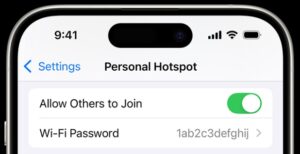
On your iPhone, go to Settings > Personal Hotspot, or Settings > Cellular > Personal Hotspot.
Turn on “Allow Others to Join”.
Next, from your computer, go to Settings > Wi-Fi and look for your iPhone or iPad in the list.
From your computer, open your Wi-Fi connections and connect to the Personal Hotspot you just created.
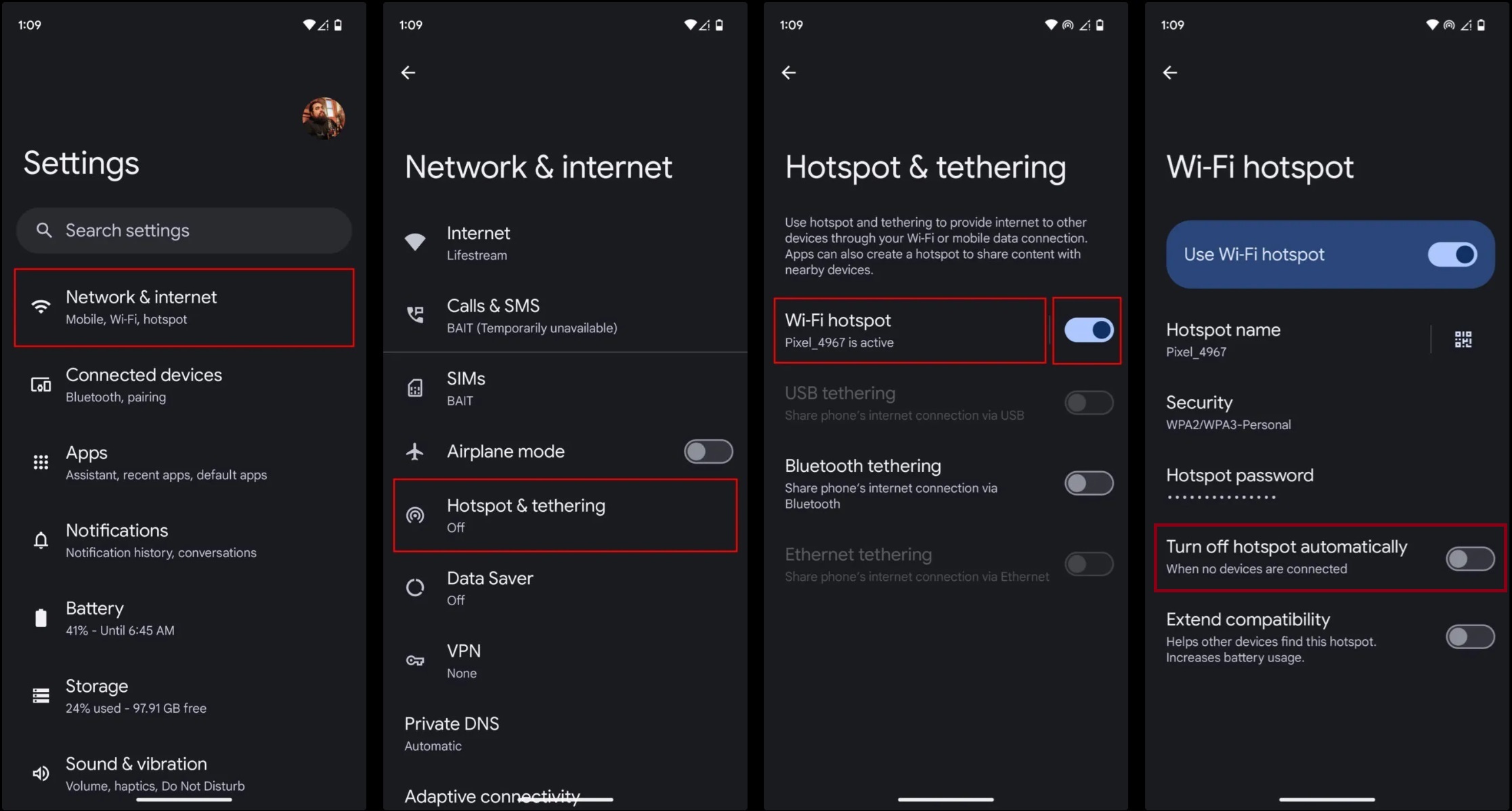
On your phone, start by turning off your WiFi.
Then, go to Settings > Networking & Internet > Hotspot & Tethering.
Toggle on Wi-Fi hotspot, and toggle off “Turn off hotspot automatically”.
From your computer, open your Wi-Fi connections and connect to the Personal Hotspot you just created.
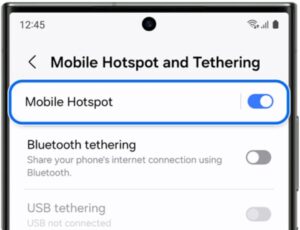
On your phone, go to Settings > Connections > Mobile Hotspot and Tethering.
Toggle on Mobile Hotspot.
From your computer, open your Wi-Fi connections and connect to the Personal Hotspot you just created.
After the technician has completed this troubleshooting step, remember to turn off your mobile hotspot on your phone.